
How to Use Virtual Staging in PropertyPixel
Choose a virtual staging style, set the number of variations, check the credit cost, and compare furnished results with your original room photo.

Furnish an empty room or restyle a furnished one by choosing a design style in Studio. Generate one option or several variations, compare them with the original, and download your preferred result.
1. Select a room photo
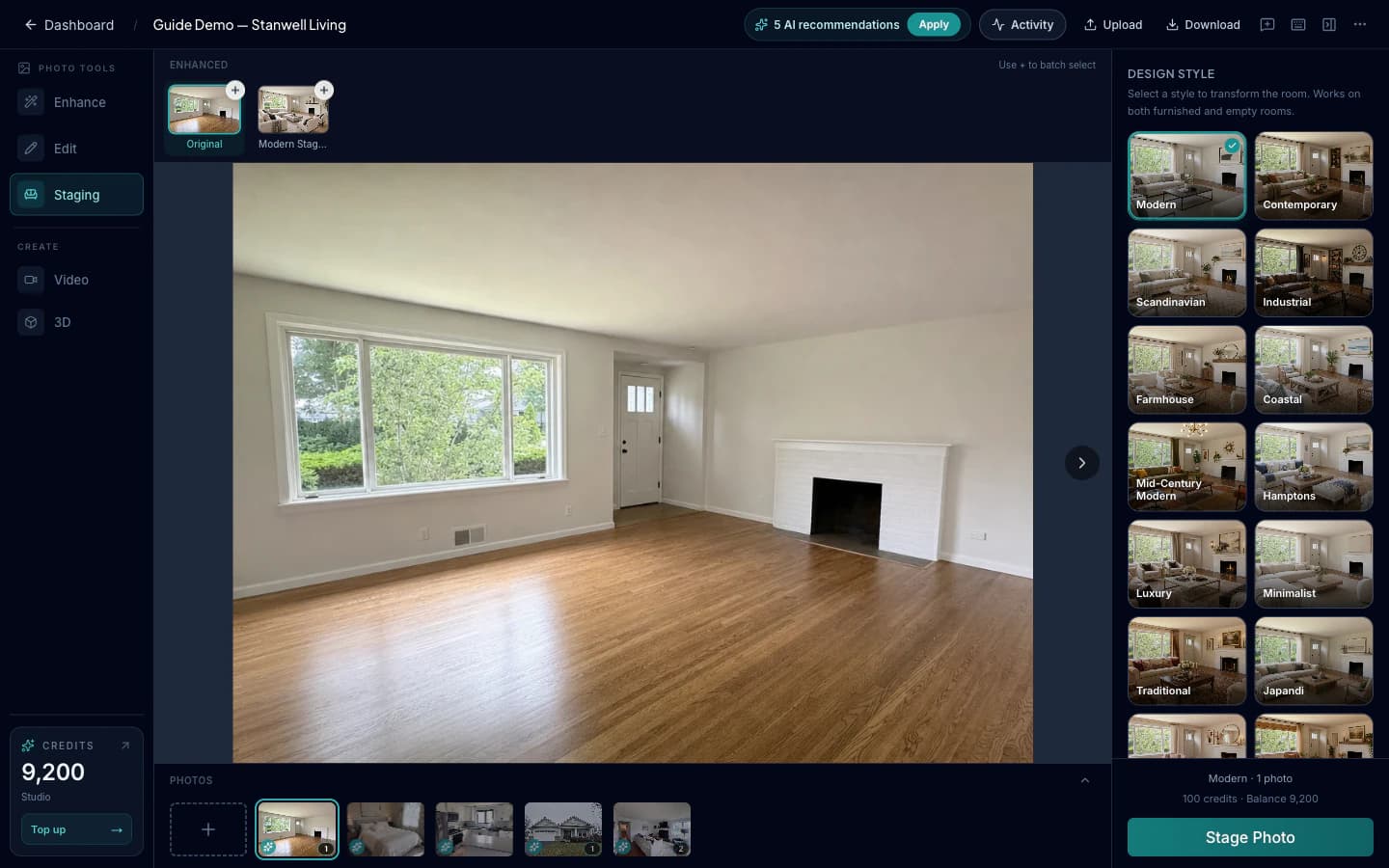
Open your project and choose a clear interior photo from the bottom strip. Pick an angle that shows the floor, walls, and main shape of the room. If you have already enhanced it, select the version you want to use above the photo.
For heavily furnished rooms, you can use Remove Furniture in Enhance first. You do not need this extra step for an empty room.
2. Choose a staging style
Open Staging under Photo tools on the left, then choose a style in the right panel. A checkmark shows the selected style.
There are 14 styles. Modern is a useful starting point for clean, simple interiors; Scandinavian offers a lighter look, while Traditional suits more classic furnishings. Choose a style that fits the property, and keep it consistent across rooms.
3. Set variations and check the cost
Scroll down inside the style panel to Variations. Choose 1–4 options for the selected style. Start with one if you want to try the style, or two if you want a choice of layouts.
Staging costs 100 credits per photo per variation. For example, two variations of one photo cost 200 credits. The total above Stage Photo updates as you change the selection.
To stage several photos with the same style, use the + on the version thumbnails to add them to a batch. Check both the photo count and variation count before continuing.
4. Generate and compare
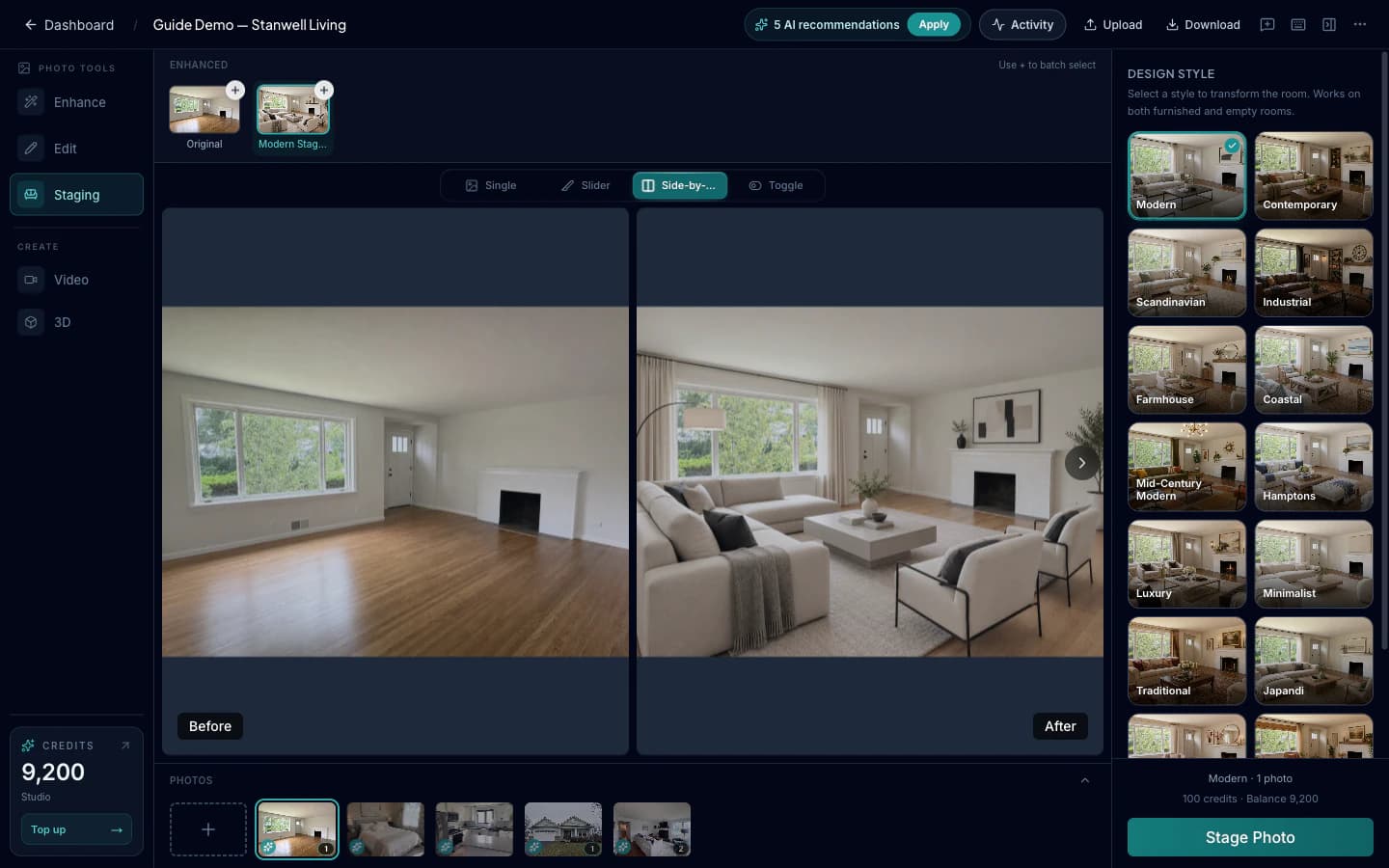
Click Stage Photo, or Stage N Photos for a batch. Follow progress in Activity, then select a completed staged version above the photo.
Use Side-by-Side or Slider to compare it with the original. Check furniture scale, clear doorways, shadows, and whether walls, windows, and fixed features remain accurate.
5. Download the version you prefer
Click Download in the top bar, select the staged results you want, and download them. Keep the original for reference and disclose virtual staging as required by your listing platform, brokerage, or local rules.
FAQ
Why is Stage Photo disabled?
Select a room photo and a design style. Opening Staging alone does not select a style for you.
What if I do not like the furniture or layout?
Try another style or generate another variation. If the overall result works but one detail needs changing, use Targeted AI Edits on that version.
Related resources
Try the workflow in PropertyPixel
Create a project, upload your listing photos, and turn them into polished photos, videos, and 3D tours from one Studio.