
MCP server
Edit listing photos from ChatGPT and Claude
Connect your AI assistant to PropertyPixel. Ask for edits in plain words, approve the cost, and get enhanced photos, staged rooms and listing videos back in the chat.
Same credits and prices as the web app · You approve every spend
How it works
- 1
Connect once
Add PropertyPixel to your assistant, sign in, and choose the workspace it can use.
- 2
Ask in plain words
Describe the edit you want for a listing. Attach photos, paste links, or upload from your phone.
- 3
Approve, then review
See the cost (100 credits per enhanced photo) and approve it. Results appear in the chat in about a minute.
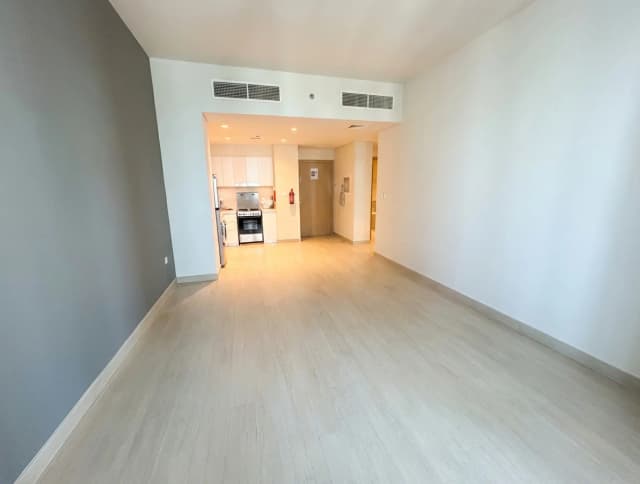
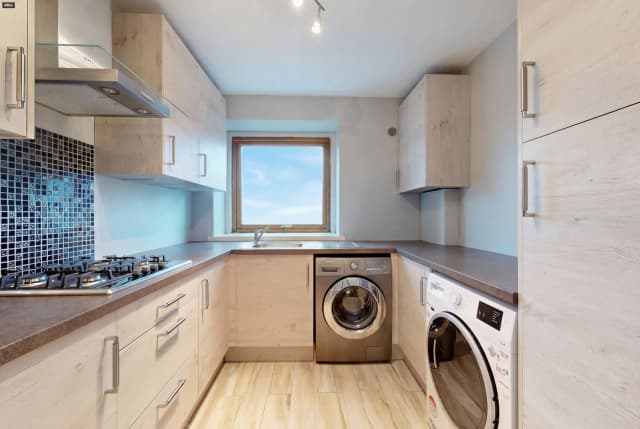
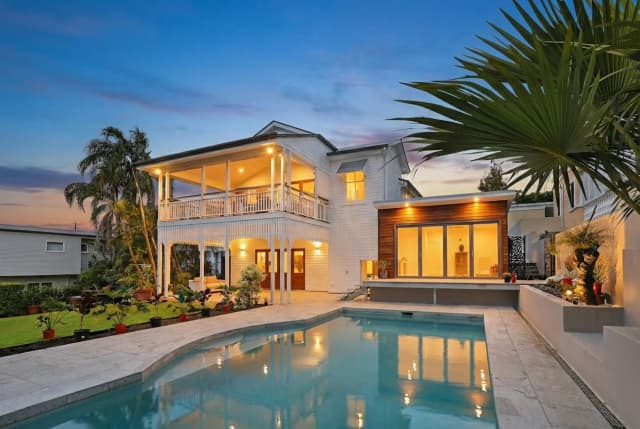
Brighten the interiors in 14 Harbour Street and give the front a blue sky.
That's 3 photos with Improve Lighting and Blue Skies. Here's the cost:
Done. Here are your results:
What your assistant can do
Everything in the PropertyPixel Studio for photos and video, available by asking.
Enhance photos
Fix lighting, declutter, add blue skies or a twilight look, or remove furniture. Combine edits in one pass.
Virtually stage rooms
Furnish empty rooms or restyle furnished ones, with up to four options per photo.
Make listing videos
Turn one photo into a short clip, or several into a Listing Tour in the order you choose.
Suggest what to fix
Ask which photos need work. Suggestions are free, and you choose which ones to run.
Take photos from your phone
Ask for an upload link and scan the QR code. Photos go straight into the project.
Pick and download
Review results in the chat, mark your favourites, and get one download link for all of them.
You stay in control
Your assistant works inside the limits you set when you connect.
Nothing runs without your OK
Your assistant shows the cost and your balance first. Credits are only spent after you approve that exact request.
One workspace, your choice
When you connect, you pick the workspace your assistant can use. It can't see or spend from any other.
View-only if you prefer
Give view-only access to let it browse projects and results without changing or spending anything.
Disconnect any time
Revoke the app in Settings → Developers and it loses access immediately.
Choose where to use it
ChatGPT
Attach photos to a message, approve a price card, and see results update in the conversation.
Set up ChatGPTClaude
Add PropertyPixel as a custom connector in claude.ai, the desktop app or Claude Code.
Set up ClaudeOther MCP clients
Any client that supports remote MCP servers with sign-in can connect to:
https://mcp.propertypixel.appYour own code
Every tool is also a REST endpoint at https://api.propertypixel.app/v1. Create an API key in Settings → Developers and get webhooks when jobs finish.
Questions
- What is MCP?
- The Model Context Protocol is an open standard that lets AI assistants use outside tools. PropertyPixel runs an MCP server, so assistants that support it can work with your projects and photos when you ask them to.
- Which assistants work with it?
- ChatGPT and Claude (including Claude Code), and any other client that supports remote MCP servers with sign-in (OAuth over Streamable HTTP).
- Do I need a PropertyPixel account?
- Yes. You sign in, or create a free account, the first time you connect. Your assistant then works in the workspace you choose.
- Does it use my credits?
- Yes, at the same prices as the web app, from the workspace you connected. You see the cost before anything runs, and failed edits are refunded automatically.
- What can the assistant see?
- Only what PropertyPixel's tools return, such as project names, photo links and job status, for the workspace you connected. PropertyPixel doesn't receive your conversation.
- How do I disconnect?
- Revoke the app in Settings → Developers. It loses access immediately. You can also remove it from your assistant's settings.
Try it on your next listing
New accounts get 500 free credits, enough to enhance 5 photos. No card needed; free results include a watermark.