
How to Label Altered Photos and Share the Originals
Turn on the disclosure pack to publish a page of original, unaltered photos and download the originals, a QR code and a label sheet for altered listing photos.

Some listings must label every altered photo and give buyers a way to see the original, as California requires under AB 723. The disclosure pack does both for a project: it publishes a page showing each altered photo beside its original, and adds the originals, a QR code, and a label sheet to your downloads. It is off by default, and nothing changes for a project that leaves it off.
1. Open Download for the project
Open the project in Studio and click Download in the top bar. The disclosure setting sits at the bottom of the download window, under Altered photo disclosure.
2. Turn on the disclosure pack
Switch on Disclosure pack for this project. A link to the project's originals page appears beside it. Use the arrow to open the page, or Copy Link to copy it.
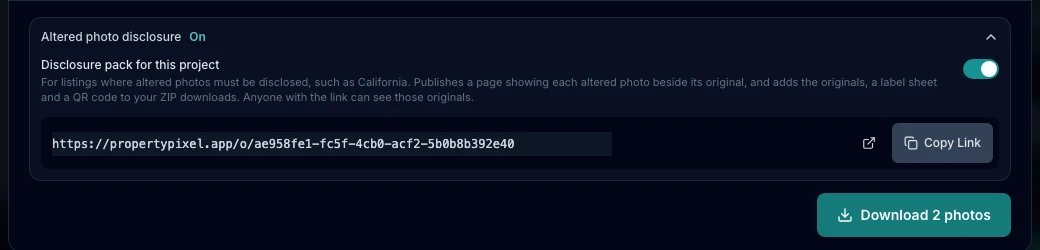
The setting belongs to the project, so it stays on the next time you download. Anyone who can edit the project can turn it on or off.
3. Check the originals page
The page is public and needs no login, so buyers can open it from a link or a QR code. For each altered photo it shows the original, labeled Original, unaltered image, beside the altered version, labeled Virtually staged or Digitally altered with the edits made.
If you have picked favorite versions, the page shows those. Otherwise it shows every finished altered version of the photo. Photos with only corrections, such as lighting, straightening, or sharpening, are left off because they do not need a label.
4. Download the pack
Choose the photos you want and click Download. With disclosure on, the download is always a ZIP, even for a single photo. Alongside your photos it contains:
- The originals, named with
-0-originalso each sorts directly before its edited versions. This helps when an MLS wants the original uploaded next to the altered photo. - disclosure-qr.svg, a QR code for the originals page, for flyers and signs.
- disclosure.txt, a label sheet. It lists each photo that needs a label, the label to use, the edits made, and a caption ready to paste, such as "Virtually staged. Original, unaltered image: [link]". Photos with only corrections are listed separately.
5. Label the photos where you publish them
Paste each caption from the label sheet next to its photo in your MLS, on portals, and on your website. Add the link or the QR code to flyers and social posts. The label sheet is a starting point, not legal advice, so check your MLS's rules for any set wording.
FAQ
What happens if I turn it off?
The originals page stops working and downloads go back to normal. The link is kept, so a QR code you already printed works again if you turn the pack back on.
Does it put a label on the photo itself?
No. Your photos download unchanged, and the label sheet gives you the text to put next to each one. Most MLSs and portals have a caption field for this.
Which edits count as altered?
Virtual staging and any edit that adds, removes, or changes something in the photo, such as decluttering, furniture removal, sky replacement, or day to dusk. Lighting, straightening, and sharpening count as corrections. A correction made on top of an altered photo is still altered.
Related resources
Try the workflow in PropertyPixel
Create a project, upload your listing photos, and turn them into polished photos, videos, and 3D tours from one Studio.